


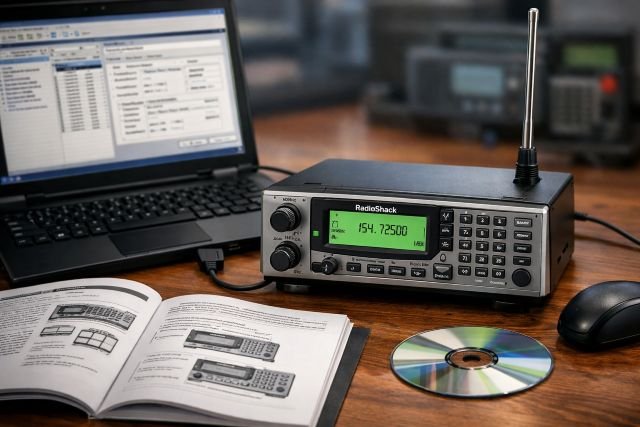
If you just picked up a PRO-2096 (or dug one out of storage), the fastest way to make it useful is with radioshack pro 2096 software. Manual keypad programming works, but software lets you build clean channel banks, label everything, back up your setup, and make quick changes when frequencies or talkgroups shift.
- What “RadioShack Pro 2096 software” actually does
- Best programming software options for the PRO-2096
- What you need before you start (software, cable, drivers)
- Step-by-step: install, connect, and confirm your COM port
- The beginner-friendly programming workflow (the one that prevents headaches)
- Easy tutorial: programming conventional frequencies in software
- Easy tutorial: programming a trunked (P25 / Motorola) system the beginner way
- Importing from RadioReference (when available)
- Real-world example: a clean “first weekend setup” that works
- Common PRO-2096 software programming problems (and fixes)
- FAQ
- Conclusion: get results fast with radioshack pro 2096 software
The PRO-2096 is a classic digital trunking base/mobile scanner that can monitor analog and APCO Project 25 Phase I-style systems (including 9600 bps control channels and CQPSK/LSM-style modulation in simulcast environments, depending on system design). This guide is written for complete beginners and will walk you through: which software to choose, what cable/driver you need, how to connect everything, and a practical programming workflow you can repeat anytime.
What “RadioShack Pro 2096 software” actually does
When people say radioshack pro 2096 software, they usually mean a Windows program that can:
- Read your scanner’s current memory into a file (backup)
- Let you edit channels/talkgroups on a big screen
- Write the updated configuration back to the scanner
- (Optional) Import frequency/talkgroup data from the RadioReference database (requires a Premium subscription in many tools)
Think of it like a spreadsheet editor for your scanner’s memory — far easier than pressing keys for every field.
Best programming software options for the PRO-2096
Win96 (Don Starr)
Win96 is a long-running favorite and explicitly supports both the PRO-96 and the PRO-2096.
It’s popular because it’s straightforward and built around how these scanners store banks and talkgroups.
Best for: people who want a simple, proven tool and don’t mind an older-style interface.
ARC96 (BuTel)
ARC96 is another major option for PRO-96/PRO-2096 programming.
BuTel highlights Windows 7/8/10/11 support and offers a trial/demonstration path before purchase.
Best for: people who want a more modern Windows support posture and a feature-rich editor.
Beginner pick: If you want the shortest learning curve, either works. If you’re on Windows 11 and want a currently marketed product with an active storefront, ARC96 is often the smoother start.
What you need before you start (software, cable, drivers)
1) A compatible programming cable
The PRO-2096 uses a PC/IF-style connection. Many hobbyists use the RadioShack 20-047 USB programming cable, which is essentially a USB-to-TTL interface with a 1/8″ (3.5 mm) plug.
(There are also older serial options like 20-289 mentioned in hobby resources, but USB is easiest today.)
2) The correct USB driver (often FTDI/VCP)
Many 20-047-style cables are FTDI-based (or compatible). If your PC doesn’t recognize the cable, install the FTDI Virtual COM Port drivers. FTDI provides driver installers for modern Windows versions.
3) Your frequency/talkgroup source
Two reliable approaches:
- Manual entry from your local agency info (official pages or local comms guides)
- RadioReference database import (when your software supports it), which generally requires a Premium subscription to access the Web Service.
Step-by-step: install, connect, and confirm your COM port
Step 1: Install Win96 or ARC96
- Download Win96 from Starrsoft (or ARC96 from BuTel).
- Install like a normal Windows app.
Step 2: Plug in the cable and install drivers (if needed)
- Plug the programming cable into USB.
- If Windows doesn’t auto-install drivers, install FTDI drivers (common for these cables).
Step 3: Find the COM port number
- Open Device Manager → Ports (COM & LPT).
- Look for “USB Serial Port (COMx)” and note the COM number.
Pro tip: If your cable works in one USB slot but not another, Windows can assign different driver instances and COM numbers — so keep it on the same port once things work.
Step 4: Connect to the scanner correctly
- With the scanner powered on, connect the 1/8″ plug to the PRO-2096’s PC/IF jack (per your cable/scanner instructions).
- In Win96/ARC96, select the correct COM port.
- Use the software command to Download from Scanner / Read from Scanner first. This confirms two-way communication before you edit anything.
The beginner-friendly programming workflow (the one that prevents headaches)
Here’s a clean, repeatable workflow that works whether you’re programming conventional channels, Motorola trunking, or P25 systems.
1) Create a “baseline backup” first
Before you touch anything:
- Read from scanner → Save file as
PRO2096_Backup_YYYY-MM-DD.p96(or your software’s format).
If you ever get lost, you can restore this in minutes.
2) Decide your goal: conventional vs trunked
- Conventional channels: single frequencies (weather, ham repeaters, business, some fire dispatch, etc.)
- Trunked systems: a pool of frequencies + talkgroups (common for public safety)
Your PRO-2096 can follow systems that align with APCO Project 25 concepts (Phase I era) and other trunking formats it supports, but it will not behave like modern Phase II scanners on newer systems. (This matters when you’re troubleshooting “I hear nothing.”)
3) Organize your banks like a map of your life
A simple strategy:
- Bank 0: Local Police
- Bank 1: Fire/EMS
- Bank 2: Utilities/City Services
- Bank 3: Nearby County / Travel
- Bank 4: Weather + Public Info
- Bank 5: Aviation/Rail (if relevant)
Keeping themes separate makes scanning faster and reduces “why is this bank noisy?”
4) Add text tags immediately
Tagging is where software shines. Instead of “CH 052,” you’ll see “FD DISP” or “CITY DPW.”
This saves you time every single day you use the scanner.
Easy tutorial: programming conventional frequencies in software
Step 1: Pick a bank and set channel spacing
In your software grid:
- Choose the bank you want (e.g., Bank 4 = Weather/Public Info)
- Enter frequency, mode (FM/NFM as required), and alpha tag
Step 2: Use copy/paste and “fill down”
Both Win96 and ARC96 are designed for quick edits — CSV import/export and spreadsheet-like entry are common capabilities in these tools.
Step 3: Upload to scanner and test
- Write to scanner
- Enable only that bank
- Hit scan and confirm you’re receiving traffic
Fast troubleshooting check: If the scanner stops but audio is garbled or silent, squelch and attenuation settings (or wrong modulation/mode) are common culprits.
Easy tutorial: programming a trunked (P25 / Motorola) system the beginner way
Trunking is where most beginners get stuck — so keep it simple:
Step 1: Confirm the system type you’re trying to monitor
Many public safety agencies use Project 25 (P25)-based systems, which were designed to standardize interoperable public safety communications.
P25 Phase I uses 12.5 kHz channels and a 9600 bps data throughput on the air interface.
If your local system is Phase II-only or heavily encrypted, the PRO-2096 may not deliver intelligible voice (encryption will sound like noise or nothing, depending on implementation).
Step 2: Enter the control channel(s) and system settings
In the trunking bank/system editor:
- Enter the listed trunking frequencies (often control + alternates)
- Set the trunking system type according to your data source
- Turn on ID Scan / Talkgroup following (wording varies by software)
Step 3: Add talkgroups + alpha tags
Start with essentials:
- Dispatch
- Tac channels you’re legally allowed to monitor
- Countywide interoperability talkgroups (if present)
Step 4: Upload and validate with a “known active” talkgroup
Pick something that’s almost always active (dispatch). If you can reliably follow that, expand your list.
Importing from RadioReference (when available)
If your software supports RadioReference Web Service import, it typically requires a RadioReference Premium Subscription for database access.
This can be a huge time-saver: instead of typing dozens of frequencies/talkgroups, you pull them directly and then customize tags and bank layout.
Beginner tip: Even with imports, always review what you imported. Your scanner works best when you prune dead channels and keep only what you actually want to hear.
Real-world example: a clean “first weekend setup” that works
Imagine you want:
- Local Fire Dispatch (conventional VHF)
- Countywide P25 trunked police dispatch
- Weather alerts
A practical setup:
- Bank 1: Fire Dispatch (frequency + tag “FD DISP”)
- Bank 0: Police trunked system (control channels + one or two dispatch talkgroups)
- Bank 4: Weather (priority enabled)
You upload, enable only those banks, and you’re scanning productively in under an hour — then you expand over time.
Common PRO-2096 software programming problems (and fixes)
“My computer doesn’t see the scanner/cable”
- Confirm the COM port in Device Manager
- Install FTDI drivers if applicable
- Try a different USB port, then re-check COM number
“Upload works, but scanning is weird”
Sometimes a bank configuration or channel mode causes unexpected scanning behavior. It’s not unusual for users to discuss “bank blinking/busy” issues tied to configuration choices.
Fixes often include:
- Disable banks and re-enable one at a time to isolate the noisy bank
- Confirm correct trunking mode and control channels
- Remove duplicate or incorrect frequencies
“I imported data, but I hear nothing”
Most common causes:
- The agency moved systems or rebanded/changed control channels
- You imported the wrong site for a multi-site system
- The system is Phase II/encrypted (limitations of older scanners)
“Audio is garbled on digital”
If you’re on a simulcast-heavy system, CQPSK/LSM behavior can be challenging for some receivers. The PRO-2096 is known to support 9600 bps control channel and CQPSK-related characteristics, but real-world results depend heavily on your location and antenna setup.
Try:
- Moving the scanner a few feet
- Using a different antenna (sometimes less is more)
- Attenuation on/off testing
FAQ
What is the best radioshack pro 2096 software for beginners?
For beginners, Win96 and ARC96 are the two most commonly referenced programming tools for the PRO-2096. Win96 explicitly supports the PRO-2096 alongside the PRO-96, while ARC96 is a current commercial option with a trial and modern Windows support messaging.
Do I need a special cable to program the PRO-2096?
Yes. You need a compatible programming/interface cable (often a 20-047-style USB cable). Many are USB-to-serial/TTL designs and may require drivers (commonly FTDI/VCP) so Windows creates a usable COM port.
Can I program the PRO-2096 using RadioReference?
If your programming software supports RadioReference Web Service import, you typically need a RadioReference Premium Subscription to access the download/programming service.
Why does my PRO-2096 scan but not stop on anything?
Most often: wrong system type, wrong control channels, wrong site, or the local agency moved to a system your scanner can’t decode (e.g., newer phases/encryption). Start by validating one known active dispatch channel/talkgroup.
Conclusion: get results fast with radioshack pro 2096 software
The PRO-2096 is still a capable scanner for the right systems, and radioshack pro 2096 software is the quickest path from “blank memory” to a clean, labeled setup you’ll actually enjoy using. Start by picking Win96 or ARC96, confirm your cable and COM port, back up your scanner, then build one bank at a time — testing as you go. Once you’ve nailed a small working configuration, expanding your programming becomes easy, repeatable, and far less frustrating.