
If your updates tab tumblr experience feels noisy, distracting, or easy to miss, it usually isn’t because Tumblr is “broken” — it’s because a few default settings are optimized for “staying informed,” not for “staying sane.” The good news is you can tune your Updates/Activity alerts, Dashboard tabs, and even theme-level “updates tabs” so you only see what matters, when it matters, in the format you prefer.
- What “Updates Tab” Means on Tumblr (Two Common Meanings)
- Best Settings for Updates/Activity: Control What Pings You (and When)
- Clean Up Your Dashboard Tabs: Your Feed Should Match Your Mood
- Fix the Most Common Updates/Activity Problem: “Ghost Notifications”
- Best “Updates Tab Tumblr” Setup by Use Case (Real-World Scenarios)
- Theme-Level Updates Tab: Best Practices (So Visitors Actually Read It)
- Quick Settings Map (What to Change First)
- FAQ
- Conclusion: Make the Updates Tab Tumblr Work for You
In this guide, you’ll learn the best settings to customize notifications, reduce clutter, fix common “ghost” alerts, and (if you run a custom theme) build a cleaner on-blog updates tab that visitors actually read. Along the way, I’ll share practical configurations for creators, casual scrollers, and network/RP blogs — so your updates tab tumblr workflow fits your real life, not the other way around.
What “Updates Tab” Means on Tumblr (Two Common Meanings)
On Tumblr, people use “updates tab” in two different ways, and mixing them up is the #1 reason settings advice feels inconsistent:
- Updates/Activity notifications inside Tumblr
This is the in-app area where you see interactions like likes, reblogs, follows, mentions, replies, asks, and more. Tumblr describes this as the Activity section, with filters and a chronological view of interactions. - An “updates tab” in a Tumblr theme (on your blog page)
This is a design element — often a hover tab or slide-out panel — where you place “status,” rules, links, updates, or announcements for visitors. Community-made tutorials and masterposts for these theme tabs are widespread.
This article covers both, because the best updates tab tumblr setup is often a combination: cleaner Activity alerts for you, plus a cleaner theme updates tab for your readers.
Best Settings for Updates/Activity: Control What Pings You (and When)
Start Here: Notification Settings (Web)
If you only change one thing, change notification settings first — because the feeling of “Tumblr is too much” is usually “Tumblr is notifying me too often.”
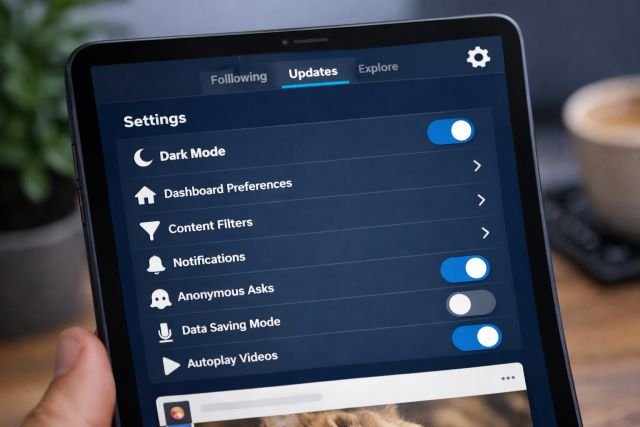
On Tumblr web, notification settings live under Settings → Notifications, and they can be adjusted per blog (use the pencil/edit icon next to each blog). Tumblr also lets you limit badge notifications to activity from only some users — useful if you want alerts from mutuals/close circles but not from everyone.
Practical setup:
If you run multiple blogs (personal + fandom + RP/network), configure them differently. Your main blog can be “high signal,” while side blogs can be “low interrupt.”
Push Notifications (Mobile): Make Them Intentional
Push notifications are designed to keep you updated on likes, reblogs, follows, and more. That’s great—until it’s constant. Tumblr’s mobile notification guidance emphasizes that pushes are meant to keep up with blog activity, but you should treat them like a “priority lane,” not a full firehose.
Recommendation: turn on push alerts for only the handful of actions you truly need in real time (for many creators: asks, DMs, important mentions), and leave the rest inside the Activity feed.
Web Notifications: Useful on Desktop, Annoying Everywhere Else
If you use Tumblr on a desktop browser, web notifications can be helpful during work sessions, but distracting if left on 24/7. Tumblr’s Help Center explains where to find and adjust web notification settings via Settings → Notifications and per-blog controls.
Pro tip: If you work in focused blocks, enable web notifications during “engagement time,” then disable them after.
Clean Up Your Dashboard Tabs: Your Feed Should Match Your Mood
Tumblr’s Dashboard can be configured with different tabs for different experiences. Tumblr’s Help Center describes “Dashboard Tabs” as separate streams you can scroll — so you can switch modes without changing accounts.
“Best Stuff First” vs Chronological: Choose Your Default
Tumblr explicitly documents the “Best Stuff First” setting: it makes your “Following” tab algorithmic (Tumblr picks what it thinks you’ll like) instead of strictly newest-first. If you prefer chronological, you can turn it off in dashboard preferences.
Which is best for your updates tab tumblr routine?
- Chronological (Best Stuff First OFF): best for creators who don’t want to miss mutuals’ posts or time-sensitive updates.
- Algorithmic (Best Stuff First ON): best if you follow a lot of high-volume blogs and want Tumblr to surface highlights.
Dashboard Navigation Got Smarter — Use It
Tumblr has rolled out navigation changes on web, including behavior that returns you to the most recent tab you used (with your pinned tab as fallback). That’s small, but it matters: it means you can “pin” the tab that supports your mental health or workflow, and Tumblr will try to keep you there.
Tumblr TV and Extra Tabs: Disable What You Don’t Use
Tumblr has expanded dashboard tab options over time. For example, Tumblr TV became broadly available and can be enabled via Dashboard Tabs configuration (and may appear by default for new users).
If you never use a tab, disable it. Every extra tab is another place your attention can leak.
Fix the Most Common Updates/Activity Problem: “Ghost Notifications”
If you’ve ever seen a notification badge but nothing appears in Activity, you’re not imagining it. Tumblr’s Known Issues notes that ghost notifications can happen if a notification came from a terminated/deleted/spam account, and the badge count can mismatch visible items. Tumblr suggests a hard refresh / cache clear as a potential fix.
Fast troubleshooting checklist (featured-snippet friendly):
- Hard refresh the page (desktop) or fully close/reopen the app (mobile).
- Check whether the missing alert came from a deleted/spam account (often the cause).
- If it persists, review notification settings and consider reducing badges to “selected users” (web settings support per-blog customization).
Best “Updates Tab Tumblr” Setup by Use Case (Real-World Scenarios)
Scenario A: Casual Scroller Who Wants Less Noise
If you mainly browse and occasionally post:
- Keep push notifications minimal (DMs + mentions only).
- Prefer algorithmic Following (“Best Stuff First” ON) if your Following list is huge; switch to chronological if you feel like you’re missing friends.
- Use Activity filters to check interactions in batches instead of reacting all day (Activity supports filtering interaction types).
Why it works: you reduce interruptions while still keeping a reliable “inbox moment” for engagement.
Scenario B: Creator Who Needs Timely Engagement (Asks, Mentions, Replies)
If your blog involves Q&As, prompts, or community interaction:
- Enable instant alerts for asks/mentions/replies (push or web notifications depending on where you work).
- Turn off “nice-to-know” alerts (likes) during work hours; check them later in Activity.
- Consider chronological Following if your peers’ posts are time-sensitive.
Why it works: you stay responsive without letting likes/reblogs become constant micro-distractions.
Scenario C: Network / RP / Resource Blog With a Theme Updates Tab
This is where “updates tab tumblr” often refers to the theme element your visitors see. If people keep asking questions you already answered, your theme updates tab can become a self-service dashboard.
Use a clean, predictable updates tab style and keep it updated weekly. Tutorials and masterposts provide many options (hover, slide-out, minimal tabs).
Why it works: visitors get answers without needing to DM you; your Activity feed gets calmer.
Theme-Level Updates Tab: Best Practices (So Visitors Actually Read It)
A theme updates tab is most effective when it’s:
- easy to find,
- easy to scan,
- and updated often enough that people trust it.
Older tutorials describe an updates tab as an “out-of-the-way area” for information you don’t want in the sidebar — exactly the right framing: it’s for essentials, not decoration.
Best Settings for a Clean Theme Updates Tab
1) Keep it minimal and structured
Many popular tutorials aim for “minimal or cluttered themes” compatibility, which is exactly what you want: the tab should reduce clutter, not add to it.
2) Make edits in the right place (Customizer vs HTML)
Some themes require editing the code for updates/about/nav sections rather than using the normal customization sidebar. Guides for theme authors often call this out explicitly: you may need to go into Edit HTML to personalize updates tabs.
3) Put “most asked” info first
Your visitors don’t want a diary. They want:
- current status (open/closed requests),
- rules,
- navigation links,
- and the most recent update date.
4) Use “last updated” dates (trust signal)
A simple “Updated: February 2026” reduces repeat asks dramatically — people trust fresh information.
5) Optimize for mobile
Hover-only tabs can be awkward on touch devices. If your audience is mobile-heavy, consider a click/tap-friendly toggle version of an updates tab, or a dedicated pinned post as a fallback.
Quick Settings Map (What to Change First)
Here’s a simple order of operations that works for most people:
- Adjust Notifications per blog (web) so badges and emails aren’t constant.
- Decide whether “Following” should be algorithmic (“Best Stuff First”) or chronological.
- Configure Dashboard tabs so your default view supports your goal (focus vs discovery).
- Fix badge glitches (ghost notifications) if they’re misleading you.
- If you run a theme updates tab, keep it minimal, scannable, and mobile-friendly.
FAQ
What is the updates tab tumblr feature?
“Updates tab tumblr” can mean either your Activity/notifications area inside Tumblr (where you see likes, reblogs, mentions, follows, asks, etc.) or a theme-based updates tab on your blog that displays info for visitors.
How do I reduce notifications from Tumblr updates?
Go to Settings → Notifications on Tumblr web and adjust notification types per blog. You can also limit badge notifications to only some users, which reduces random/low-value pings.
Why does Tumblr show a notification badge but nothing is there?
This is often a ghost notification, which Tumblr documents as sometimes caused by notifications from deleted/terminated/spam accounts. A hard refresh or cache clear may resolve it.
Should I turn off “Best Stuff First” on Tumblr?
Turn it off if you want a strictly chronological Following feed; keep it on if you want Tumblr to prioritize posts it thinks you’ll like. Tumblr explains that “Best Stuff First” makes Following algorithmic.
How do I add an updates tab to my Tumblr theme?
Many themes require editing HTML to customize updates/about/nav sections. Tutorials and masterposts provide multiple tab styles (hover, slide-out, minimal). If your theme doesn’t expose it in the customization sidebar, you’ll likely need to edit the theme code.
Conclusion: Make the Updates Tab Tumblr Work for You
A better updates tab tumblr experience isn’t about finding a hidden “perfect” toggle — it’s about aligning Tumblr’s Activity alerts, Dashboard tabs, and theme elements with how you actually use the platform. Start by trimming notifications per blog, decide whether you want algorithmic or chronological Following, and remove tabs you never use. If badges lie to you, fix ghost notifications. And if you run a custom theme, keep your on-blog updates tab minimal, scannable, and mobile-friendly so it reduces questions instead of creating more.